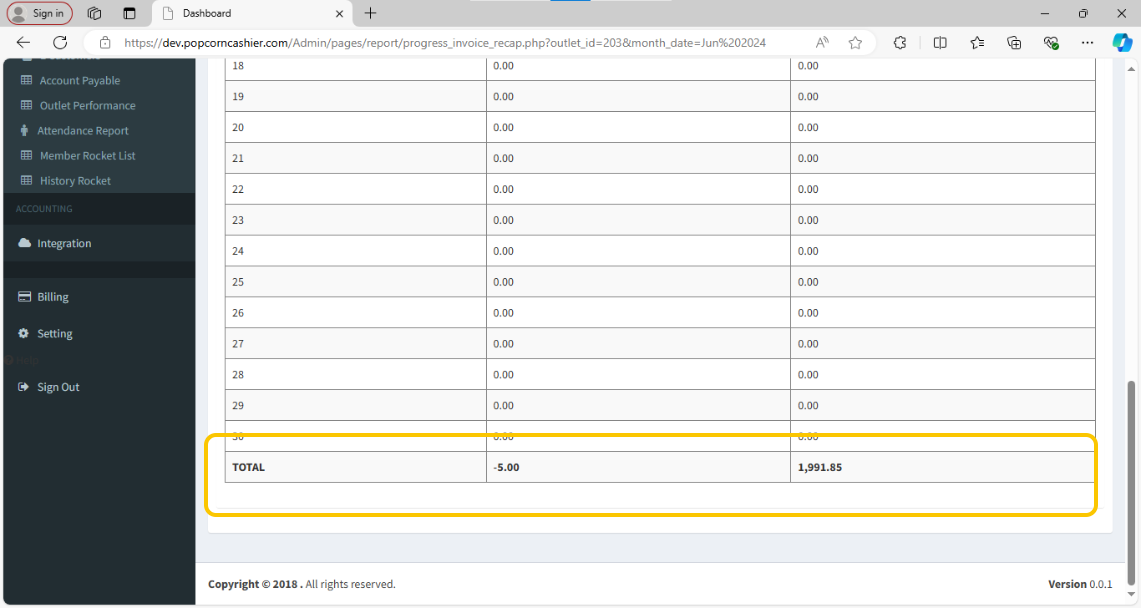
BACKEND REPORT- Transaction Comparison (Owner)
1. In your dashboard home page, scroll down to Transactions row and press Report.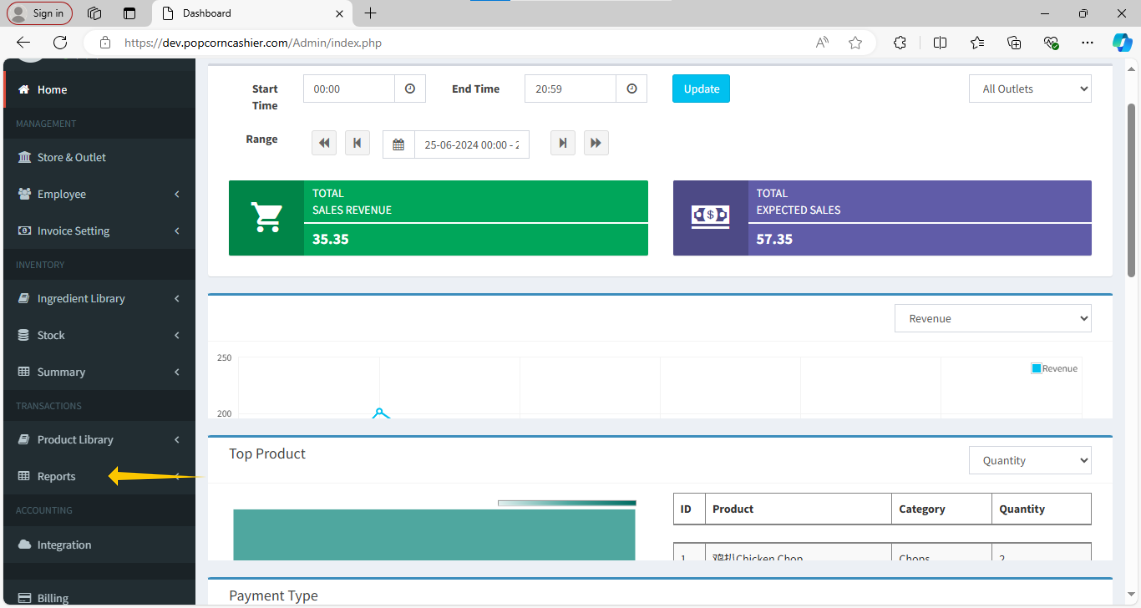
2. Then, click on Transaction. 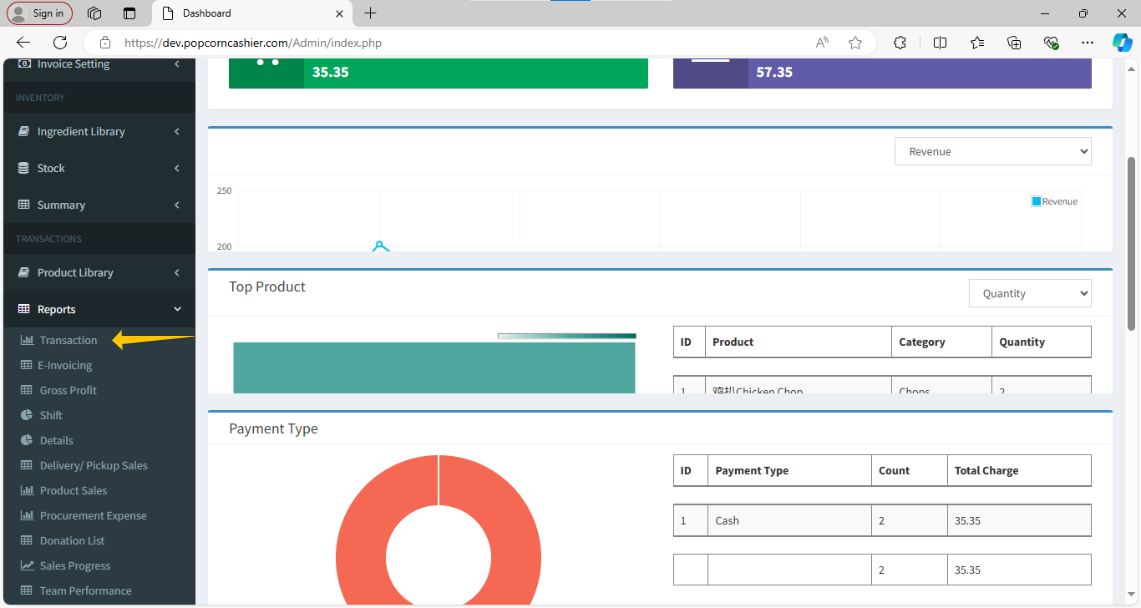
3. After click on Transaction in the left-hand side, click on Transaction Comparison.
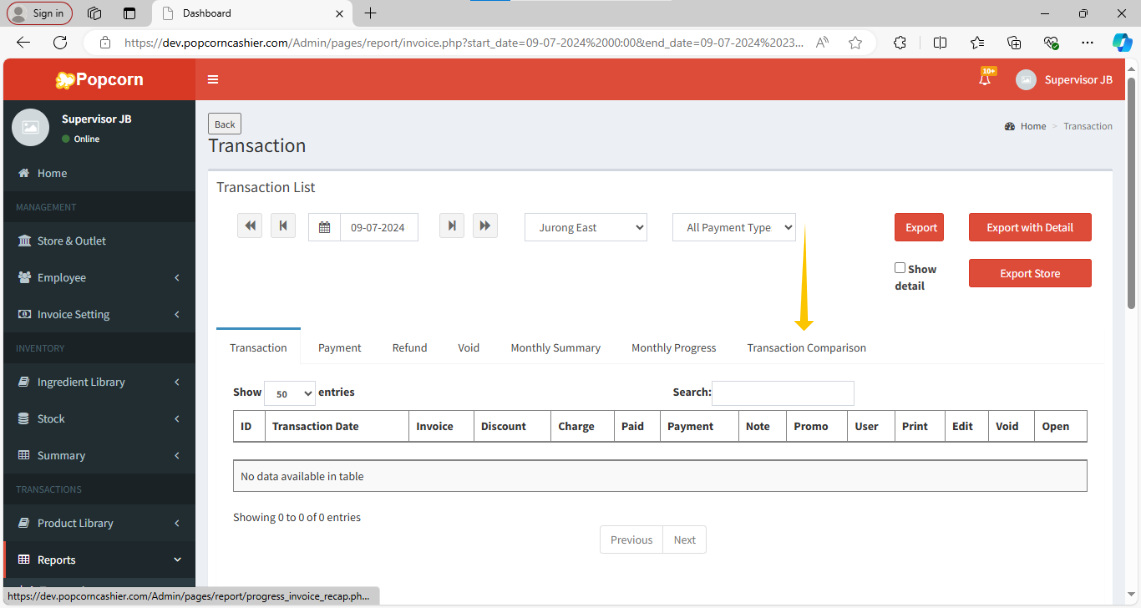
4. It will show a comparison table between the selected last year month and the selected this year month.
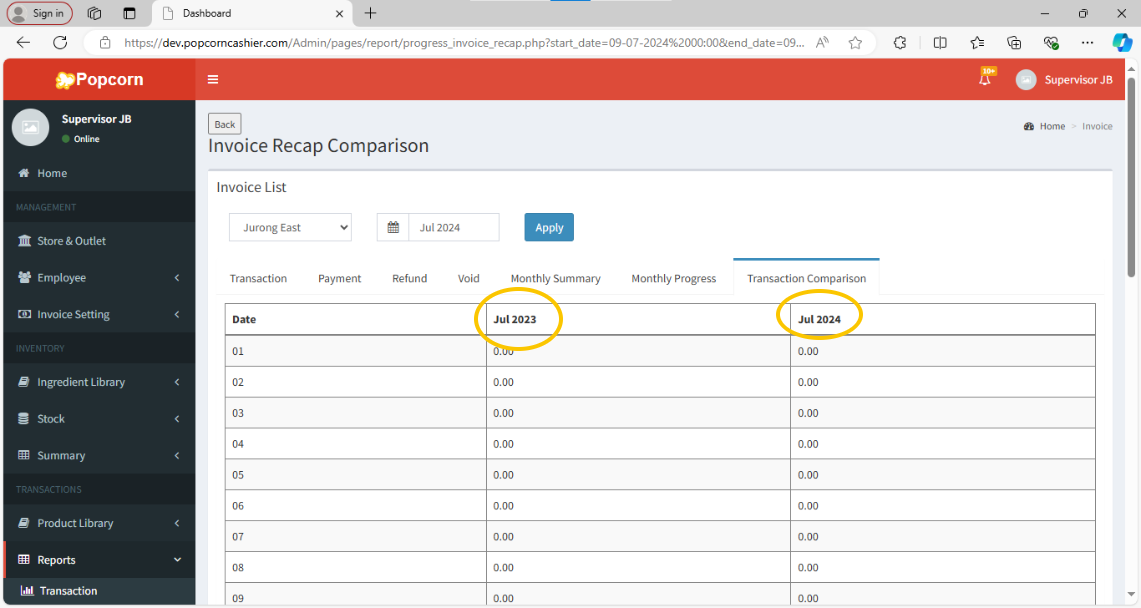
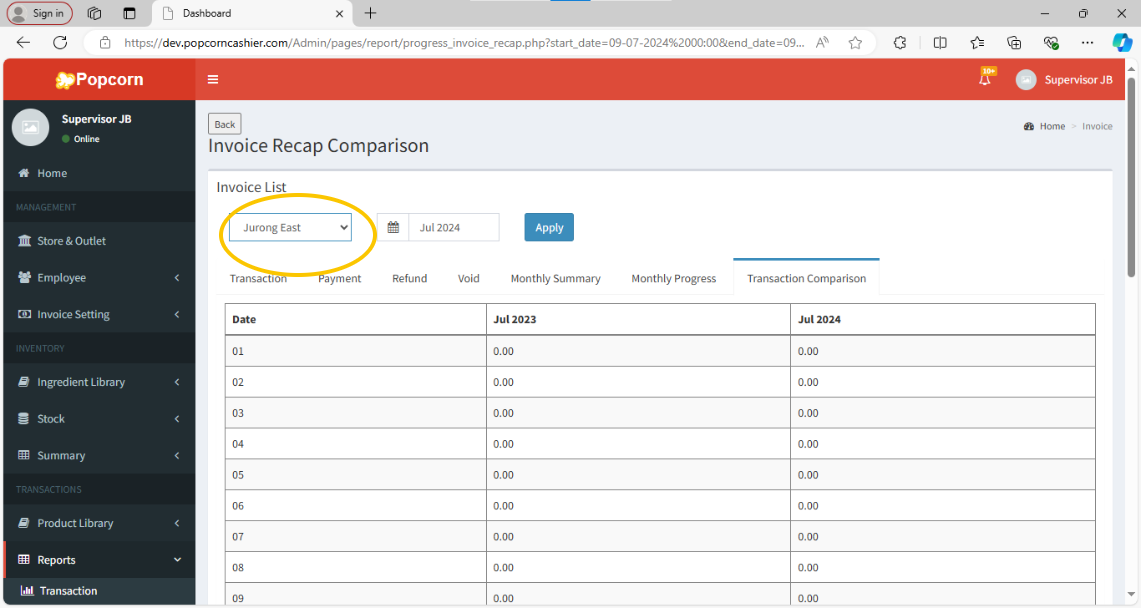
5. First, select the Outlet that need to view.
6. Then, select the Date to make a comparison.
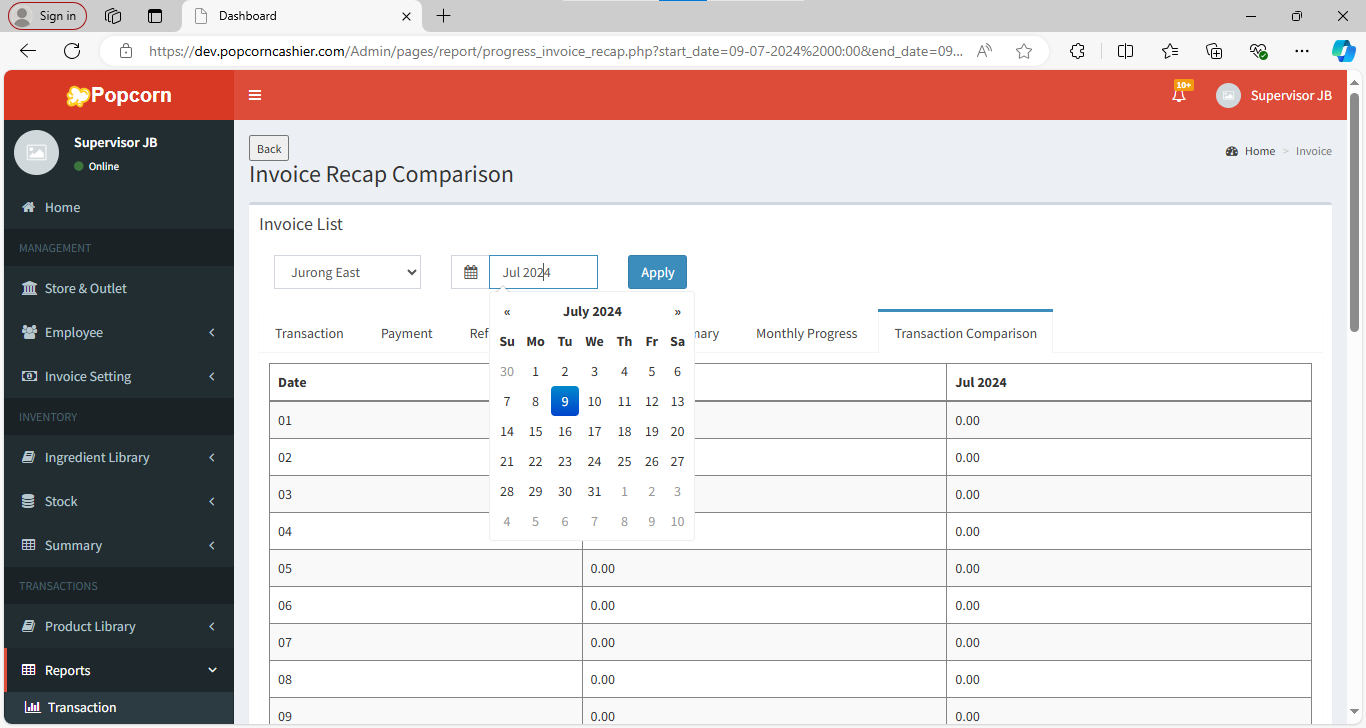
7. Click on Apply to generate the comparison table.
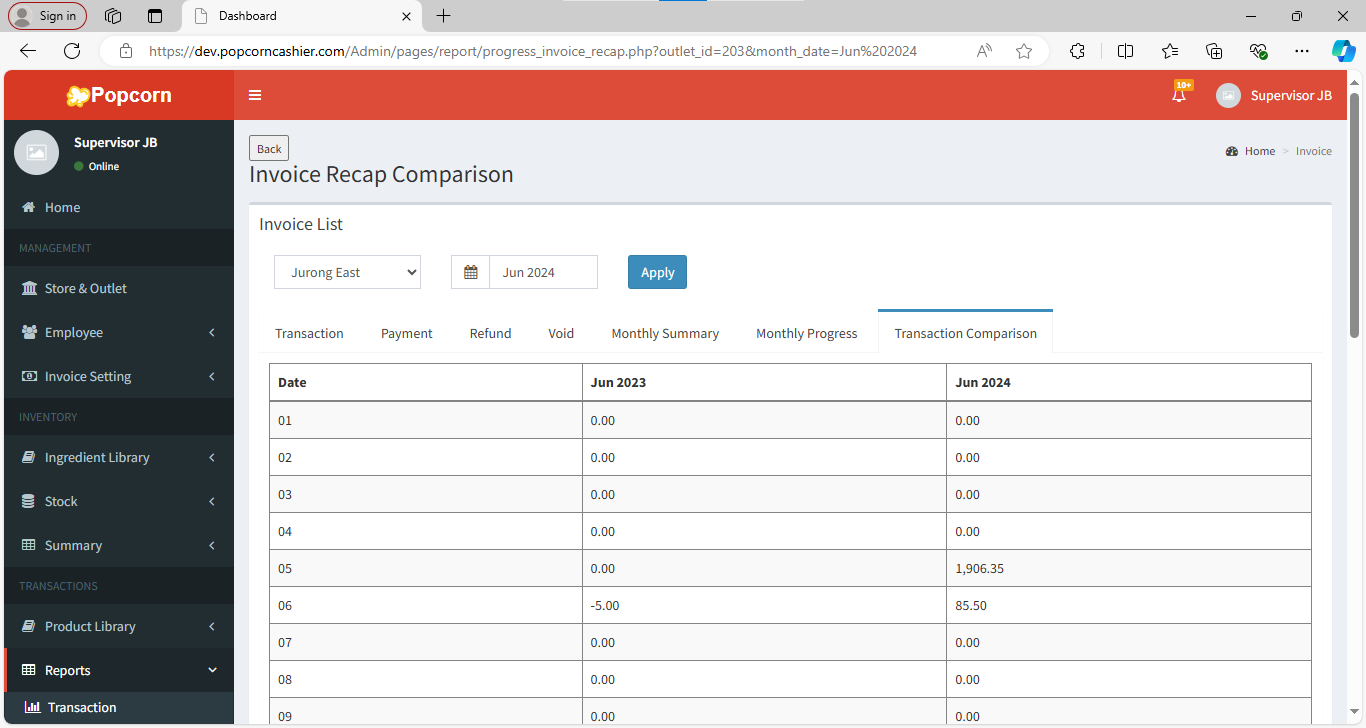
8. And the comparison will be showing by table format. By scrolling down and to see the total.