How to Refund (Cashier)
Step 1: Open the App
Open the Popcorn Cashier app on your device.
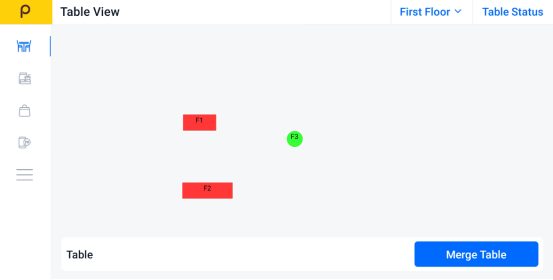
Step 2: Click the Sidebar
Tap the menu icon (☰).
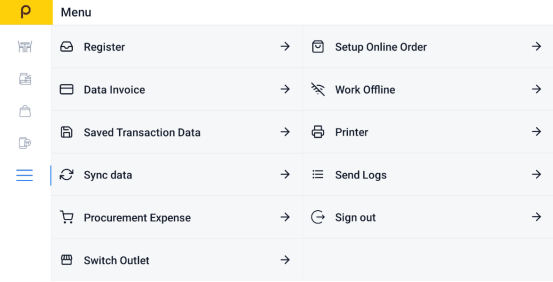
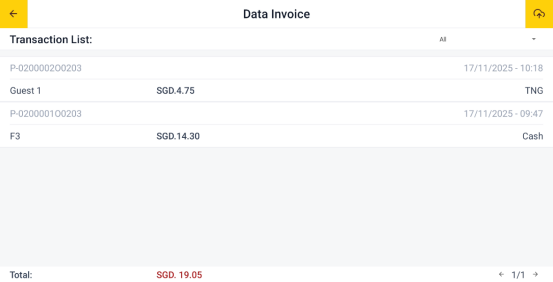
Step 3: Find "Data Invoice"
Select Data Invoice to view all recent transactions.
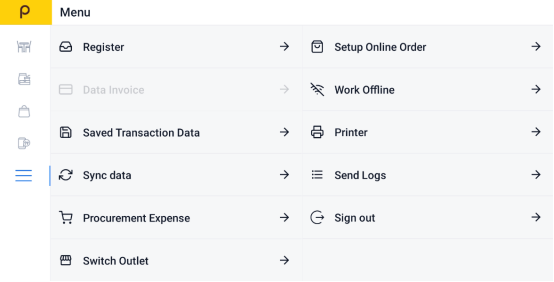
Step 4:Choose the Bill You Want to Refund
Scroll through the list or search to find the specific invoice or bill.
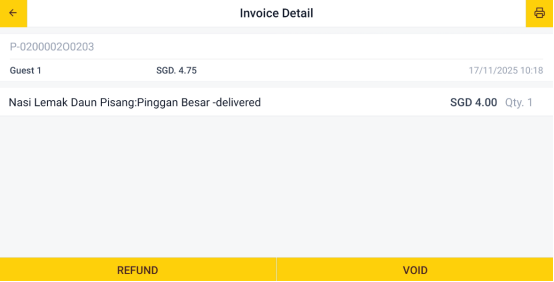
Step 5: Click the Refund button
Tap the "Refund" button.
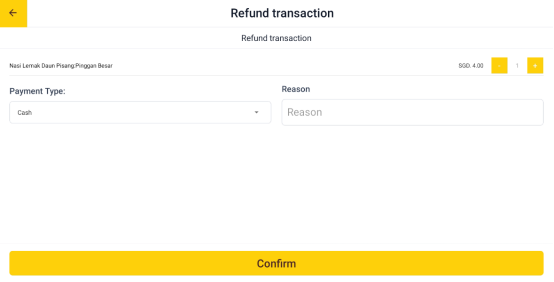
Step 6:Select item to refund
Select the specific item that want to refund from the bill.
Step 7: Enter refund reason
Enter the reason for the refund in the field provided.
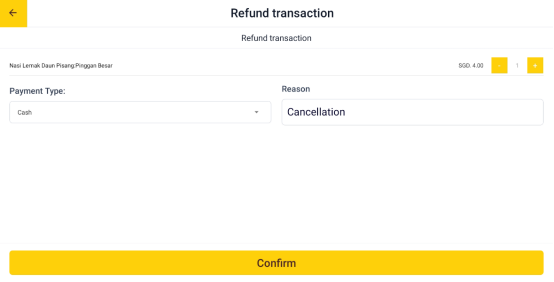
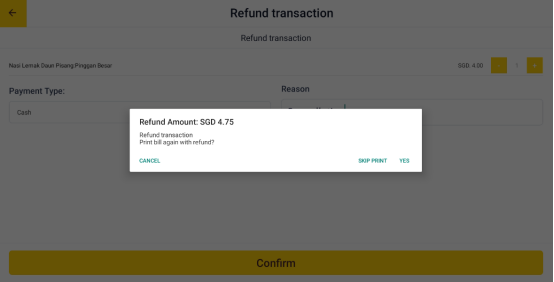
Step 8: Confirm the refund
Tap "Confirm" to submit the refund request.
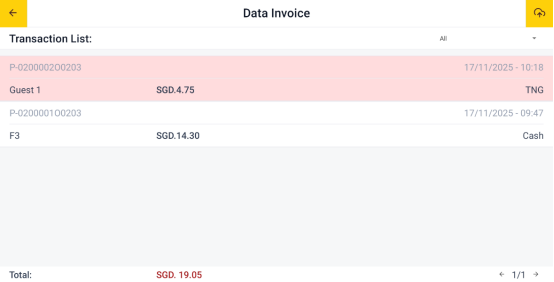
Once confirmed, the refunded bill will be highlighted in red, so you can easily spot it.