How to Cancel Order or Product
Step 1: Open the App
Launch the Popcorn Cashier App on your device.
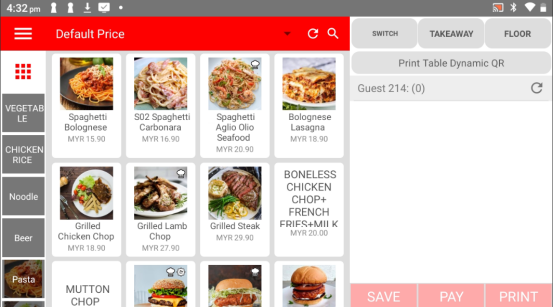
Step 2: Add an Order
Start by selecting food items that the customer wants to order.
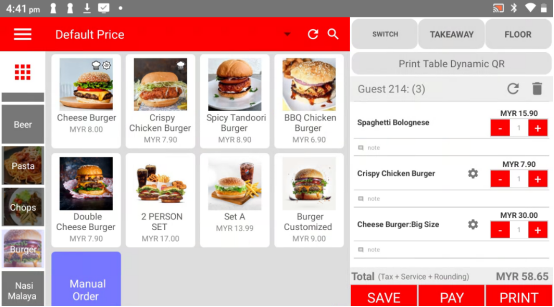
Step 3: Save the Order
Tap the Save button to save the order before making any cancellations.
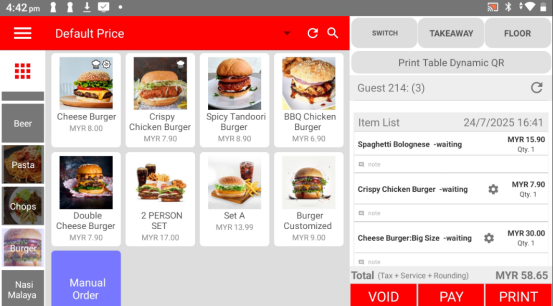
Step 4: Swipe the Food Item to the Right
On the saved order screen, swipe the food item you want to cancel to the right. This will reveal the cancel option.
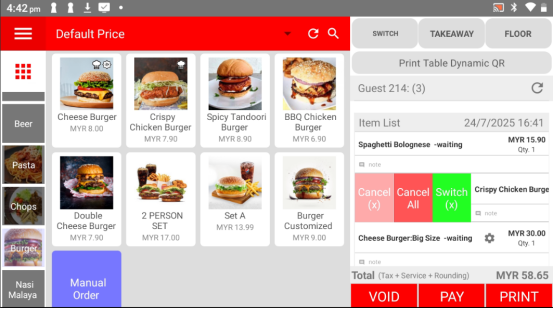
Step 5: Click "Cancel All"
To cancel all selected items in the order, tap Cancel All. You can also cancel individual items if needed.
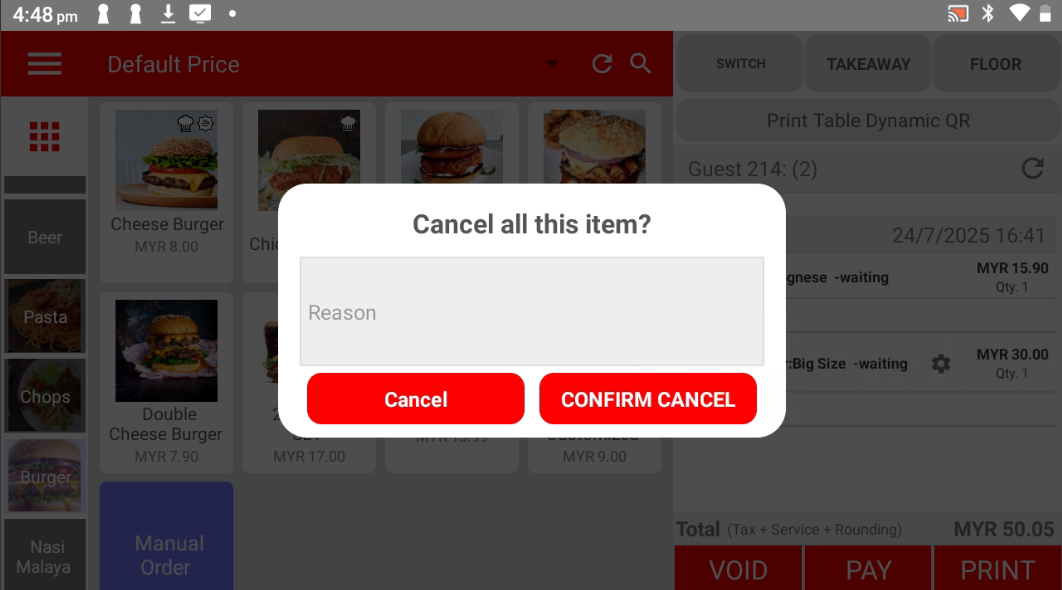
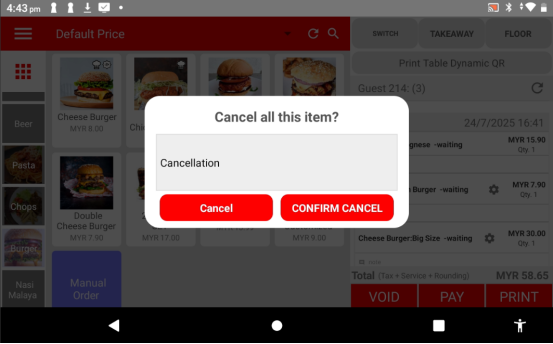
Step 6: Type the Reason
Enter a reason for canceling the item(s), such as "Cancellation" or "Customer changed item."
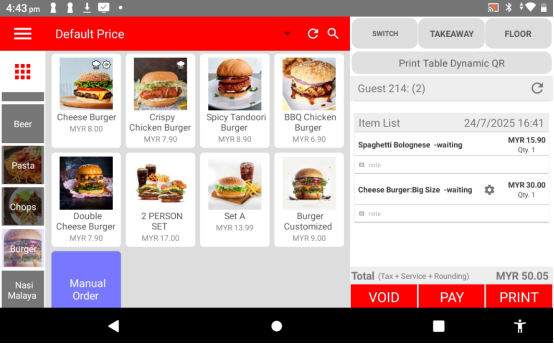
Step 7: The Product has been successfully Cancelled
The selected item(s) will be removed from the order and marked as cancelled in the system.
Please click the link below to access the article:
---------------------------------------------------------------------------------------------------------------------------------------------------------------------
Please refer to the video below for more information:
