How to Switch to Offline Mode
Step 1: Open the App
Launch the Popcorn Cashier App on your device.
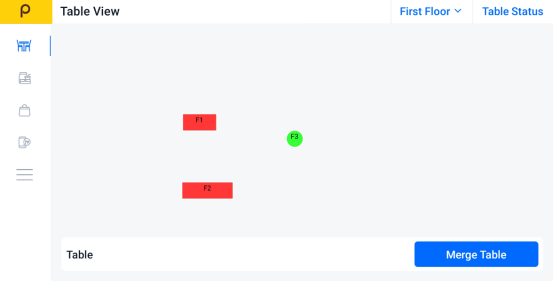
Step 2: Open the Sidebar
Tap the menu icon (☰).
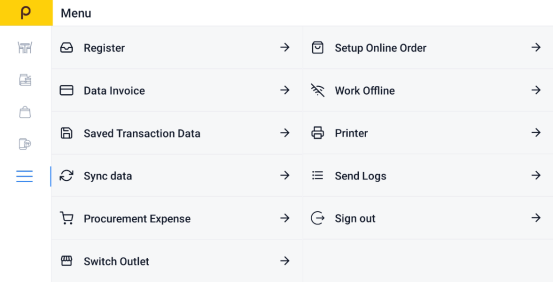
Step 3: Switch to Offline Mode
Tap "Work Offline".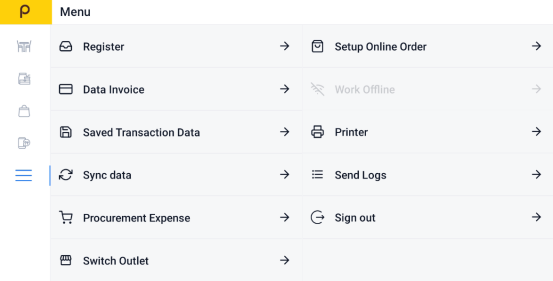
Step 4: Confirm Offline Mode
The icon at the top left turns grey, and “Work Offline” becomes “Work Online.”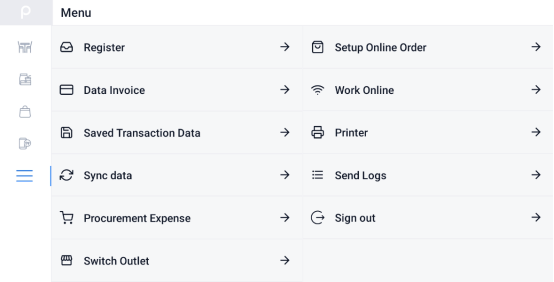
Step 5: Take the Order
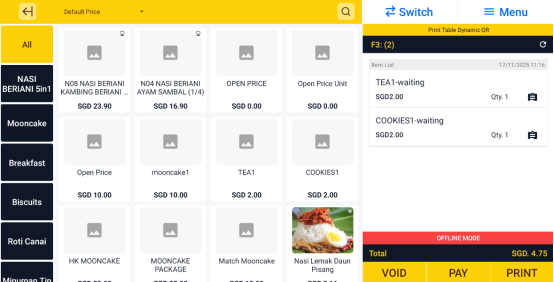
Proceed to take the customer's order as you normally would.
Step 6: Make the Payment
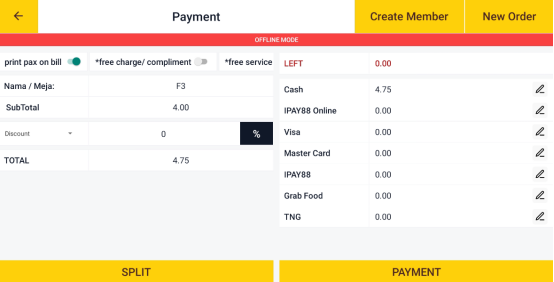
Complete the transaction. The data will be stored locally while offline.
Step 7: Return Online
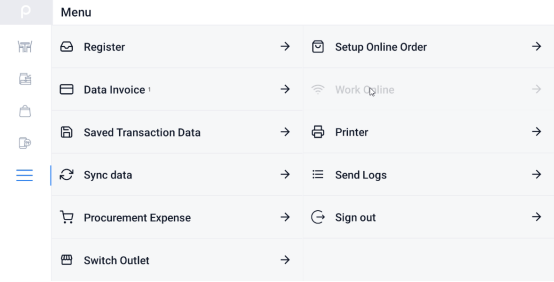
When you're connected to the internet again, tap "Work Online".
Step 8: Sync Transactions
Once you're back online, the app will automatically prompt you to sync all offline transactions. Confirm to complete the process.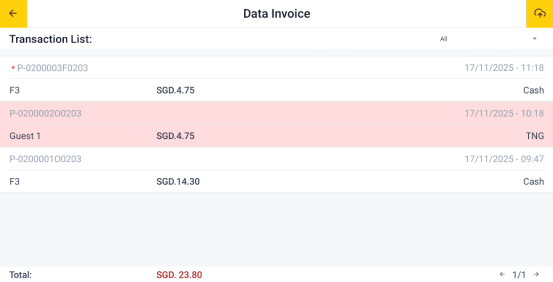
Step 9: Upload to Cloud
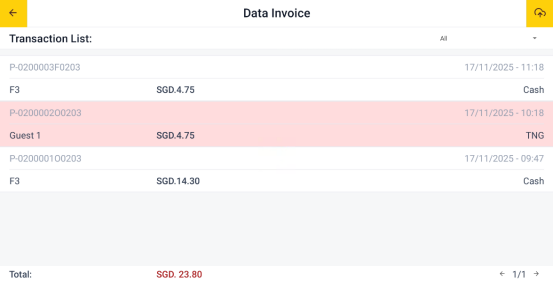
Tap the cloud icon at the top right to upload the offline invoices to the cloud.