How to Refund (Cashier)
Step 1:
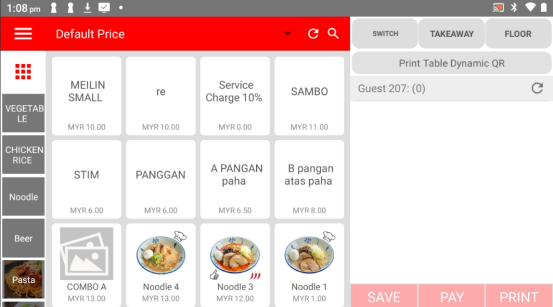
Open the Popcorn Cashier app on your device.
Step 2:
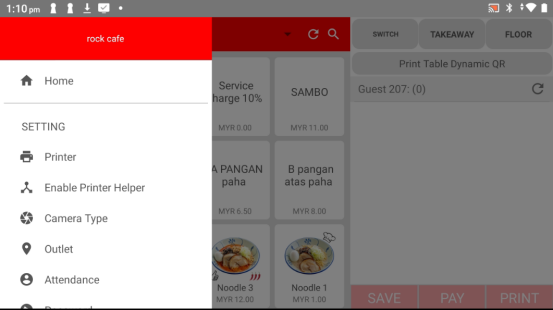
Tap the sidebar menu (found in the top-left corner).
Step 3:
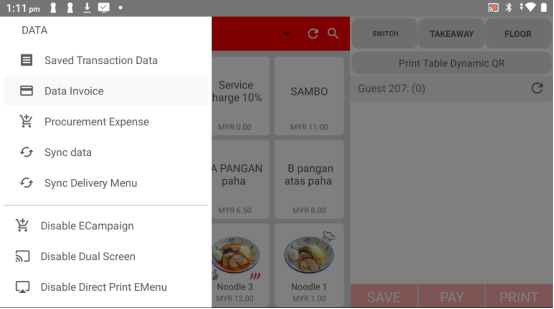
Under the "Data" category, select "Data Invoice."
Step 4:
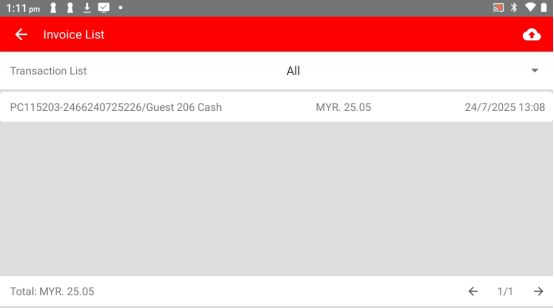
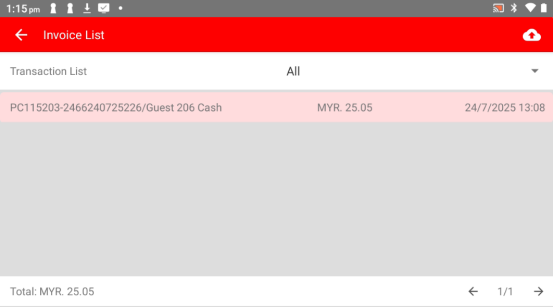
From the invoice list, choose the bill that want to refund.
Step 5:
Tap the "Refund" button.
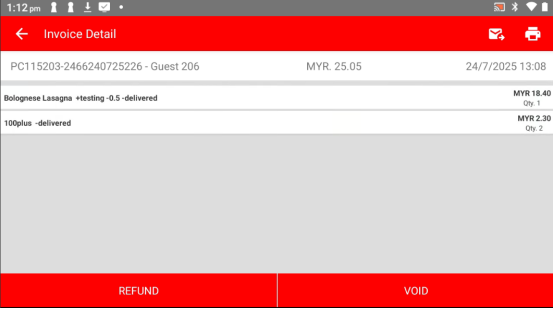
Step 6:
Select the specific item that want to refund from the bill.
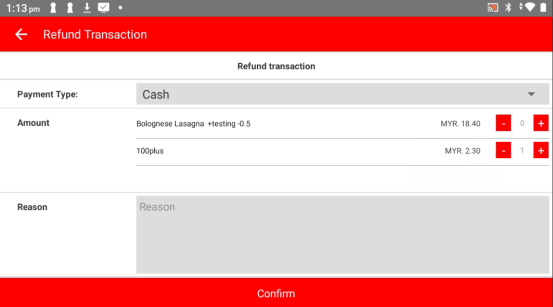
Step 7:
Enter the reason for the refund in the field provided.
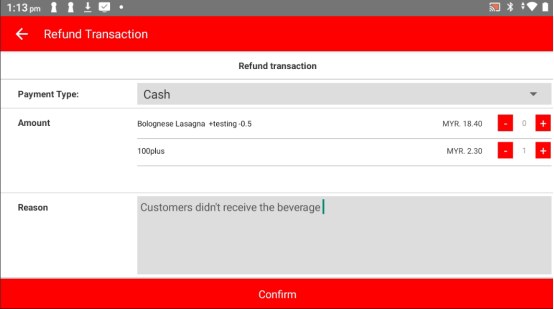
Step 8:
Tap "Confirm" to submit the refund request.
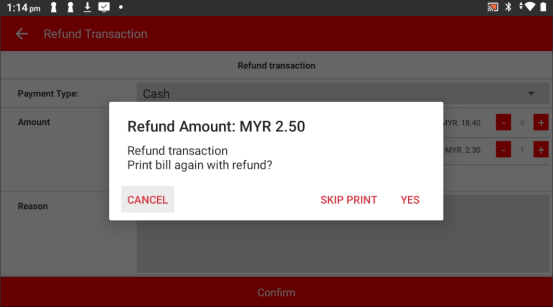
Once confirmed, the refunded bill will be highlighted in red, so you can easily spot it.
Please click the link below to access the article:
---------------------------------------------------------------------------------------------------------------------------------------------------------------------
Please refer to the video below for more information:
